Get competitor alerts in Slack
In short
Create a small Slack app with the incoming-webhook permission, install it to your channel, and paste its link into Riposte's Settings. High-impact changes then arrive in that channel every morning, with what changed, why it matters and who does what.
Most competitor alerts die in an inbox. Riposte posts them where your team already talks, and each one says what changed, why it matters and who does what.
Setup takes about five minutes, once.
What you'll get in Slack
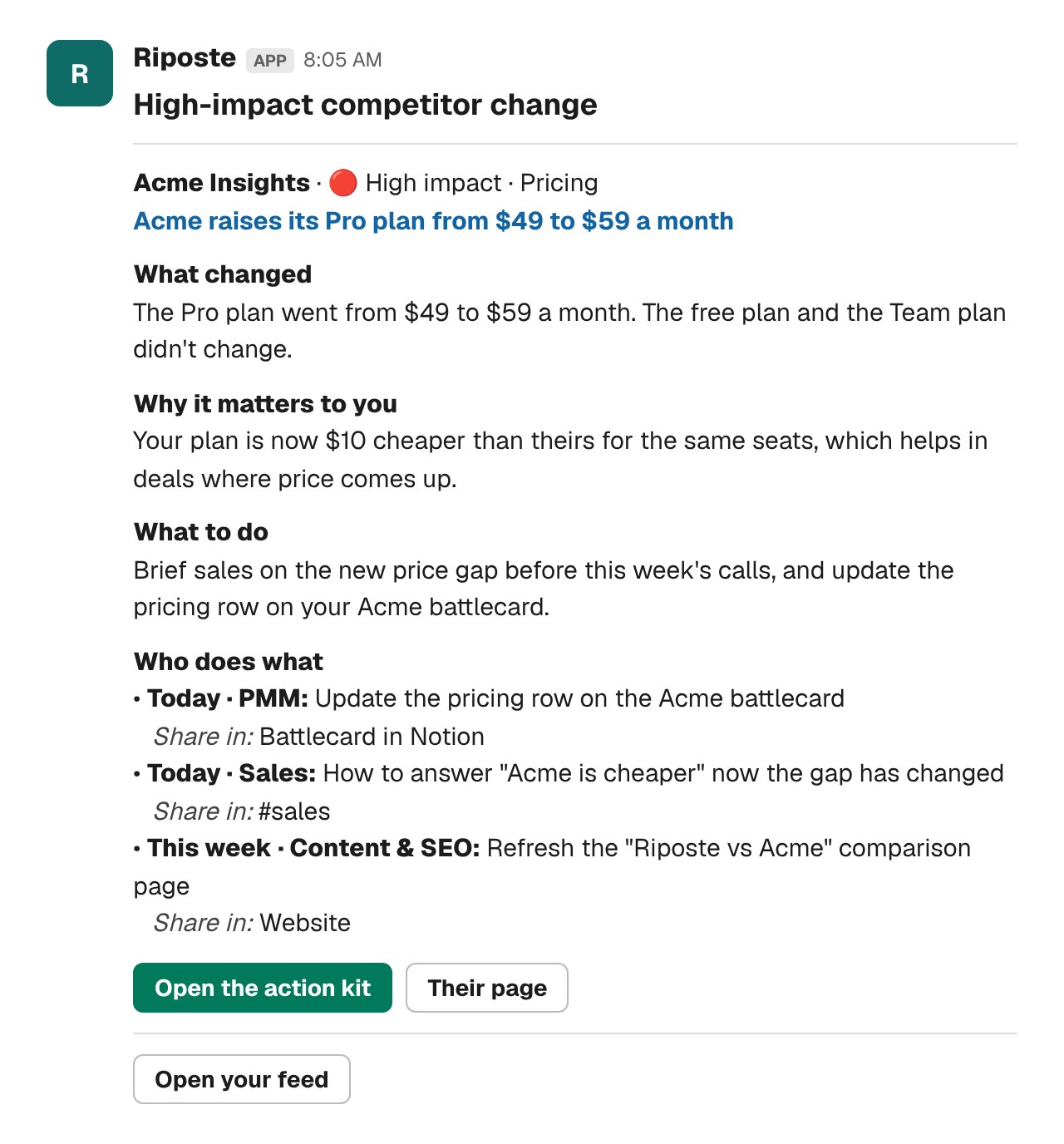
High-impact changes arrive the morning they're found, and a summary of the week every Monday. If an action kit exists, the alert also lists who does what.
Before you start
You need a Riposte account with a competitor added, and a Slack channel your team already reads, such as #competitor-alerts or #sales.
Company Slack?
Some workspaces need an admin to approve new apps. If Slack asks for approval, send the request to your admin.
Step 1: Create a Slack app
Open api.slack.com/apps, click Create an App, choose From scratch and name it Riposte.
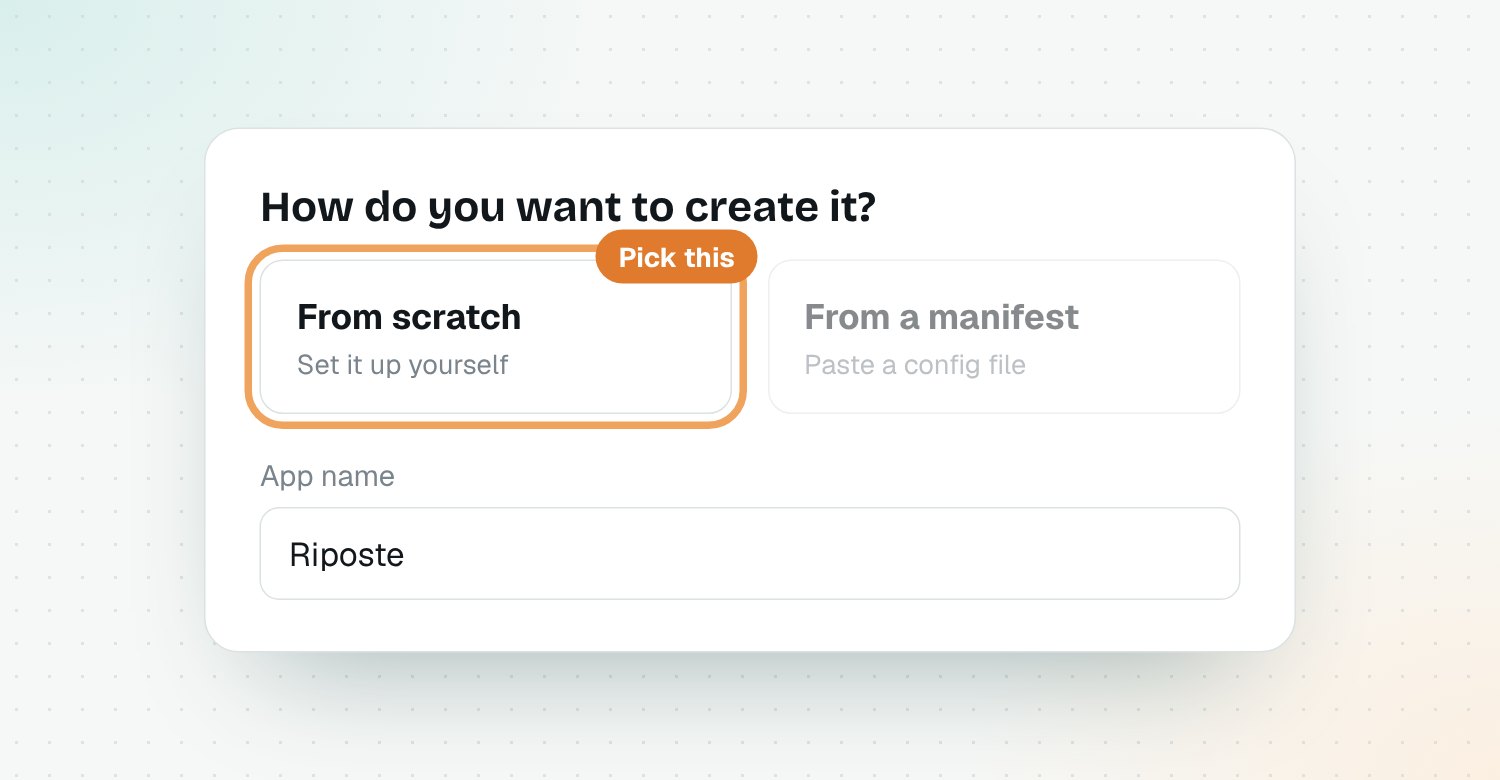
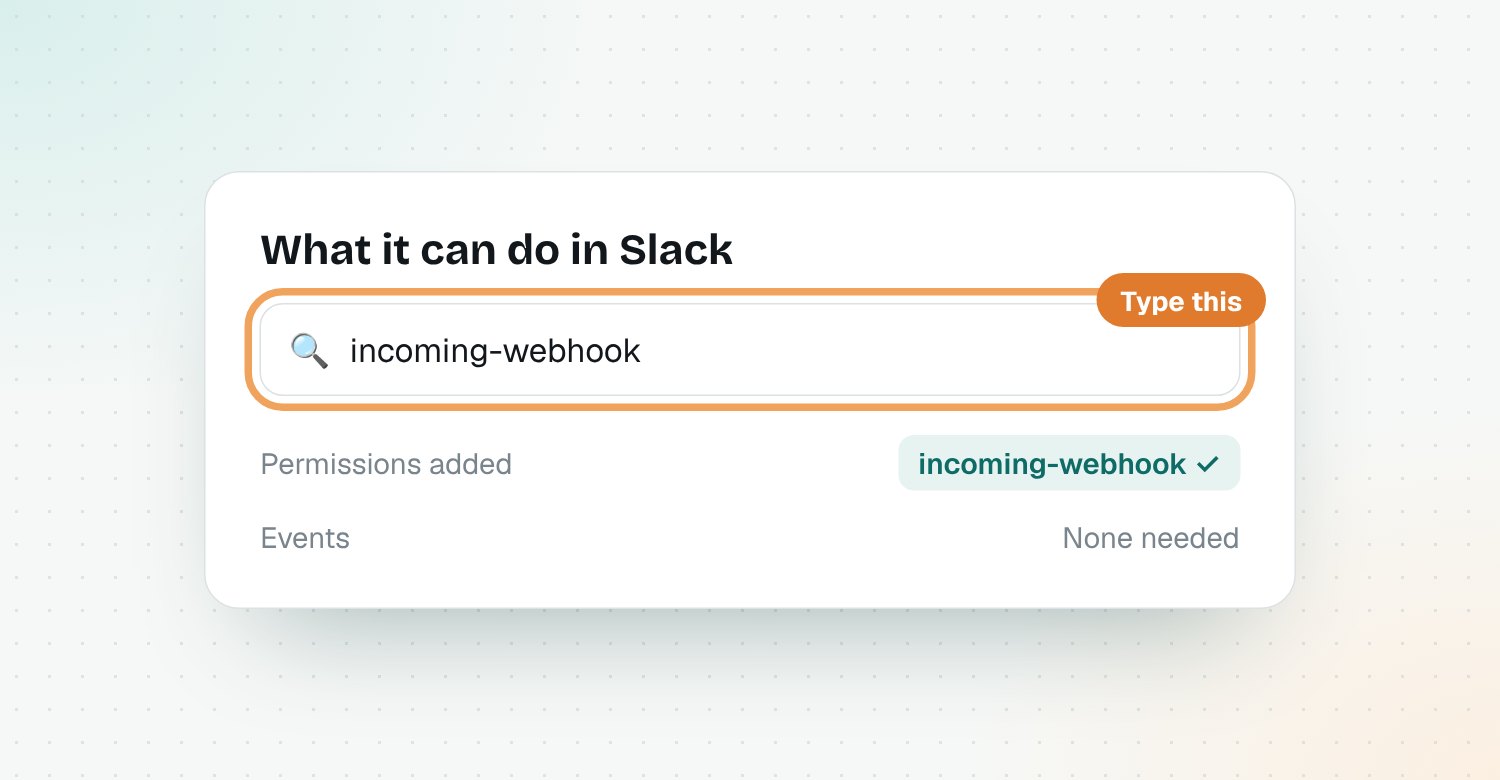
Step 2: Add one permission
Search for incoming-webhook and add it. Skip events. Riposte only posts messages; it never reads your Slack.
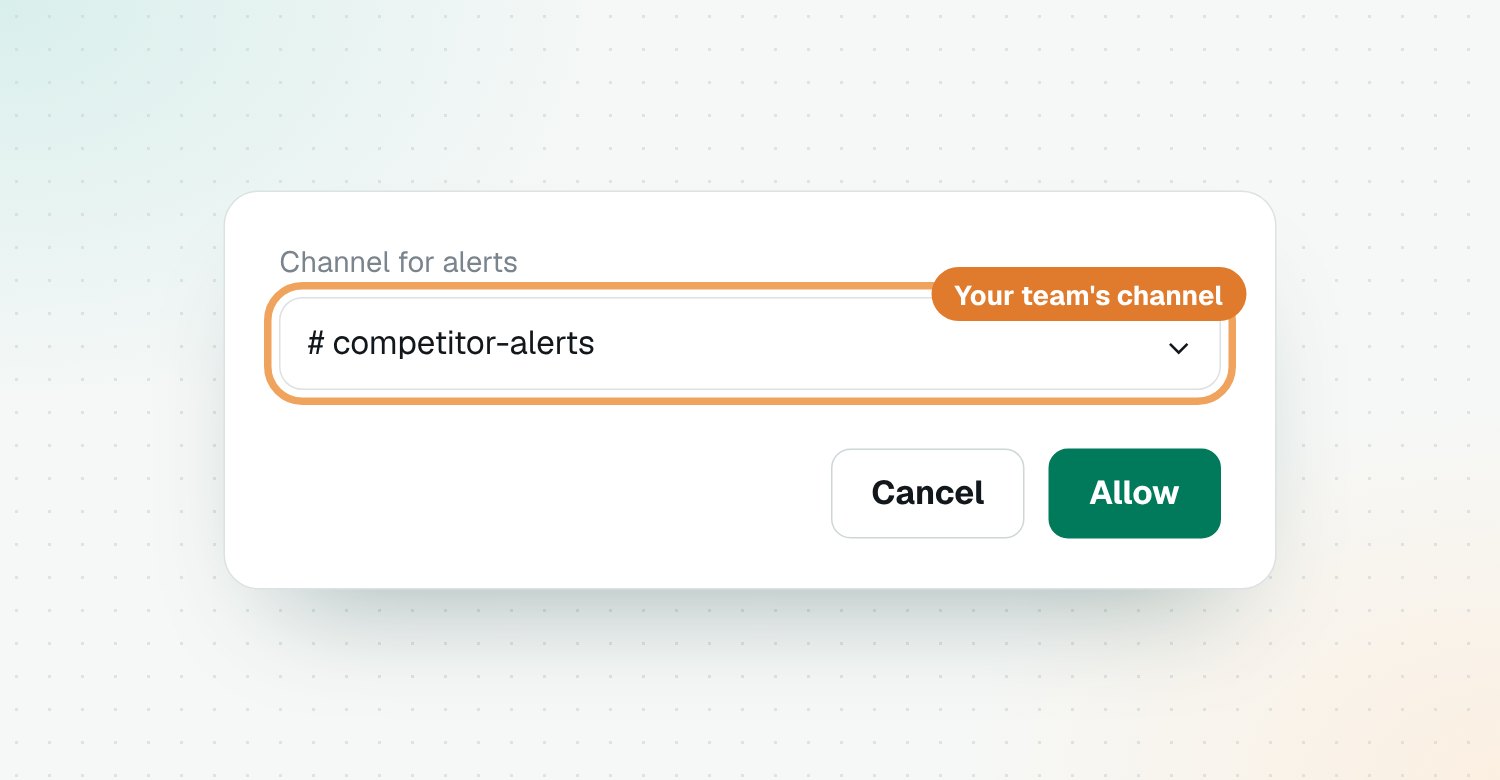
Step 3: Install it to your channel
Click Create and Install, pick your channel and click Allow.
Step 4: Copy the link into Riposte
In Incoming Webhooks, copy your channel's link. Paste it into the Slack box in Riposte's Settings and click Save.
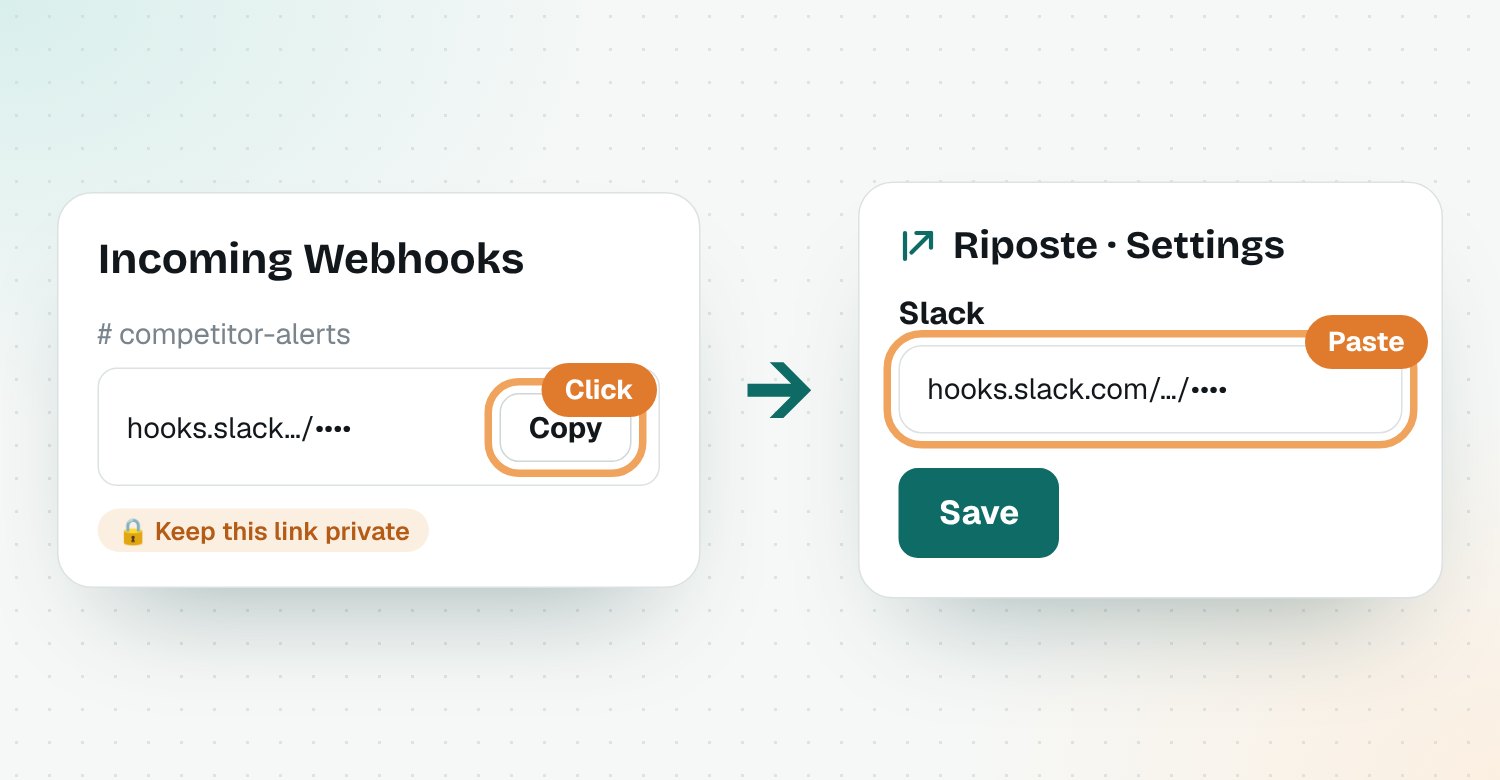
Keep the link private
Anyone with it can post in your channel. Paste it only into Riposte.
Step 5: Turn on button clicks
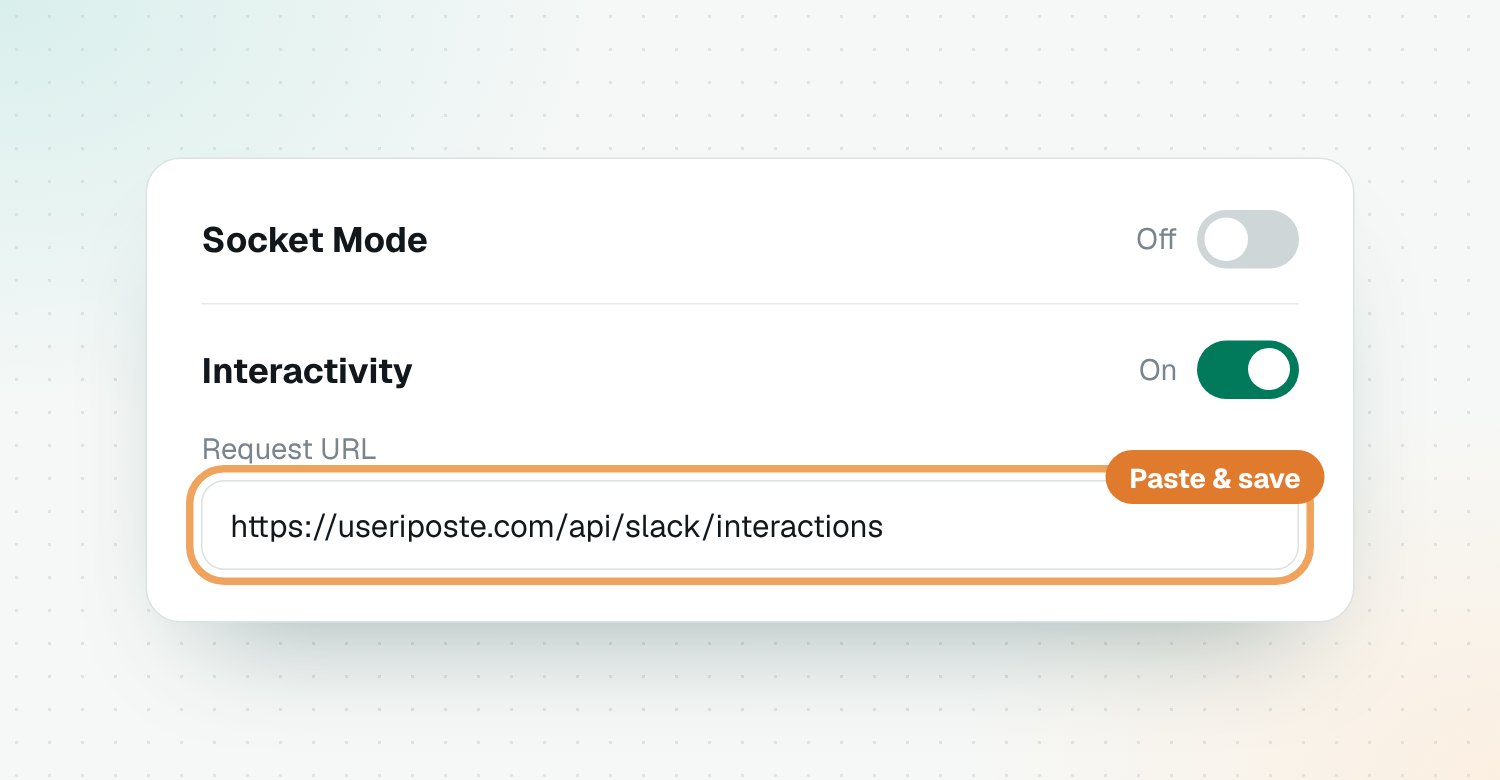
Make sure Socket Mode is off. Turn Interactivity on and paste https://useriposte.com/api/slack/interactions as the Request URL, then save. This stops Slack showing a warning icon when you click a button.
Step 6: Send a test
In Riposte's Settings, click Send a test to Slack. You'll get a real example from your own feed.
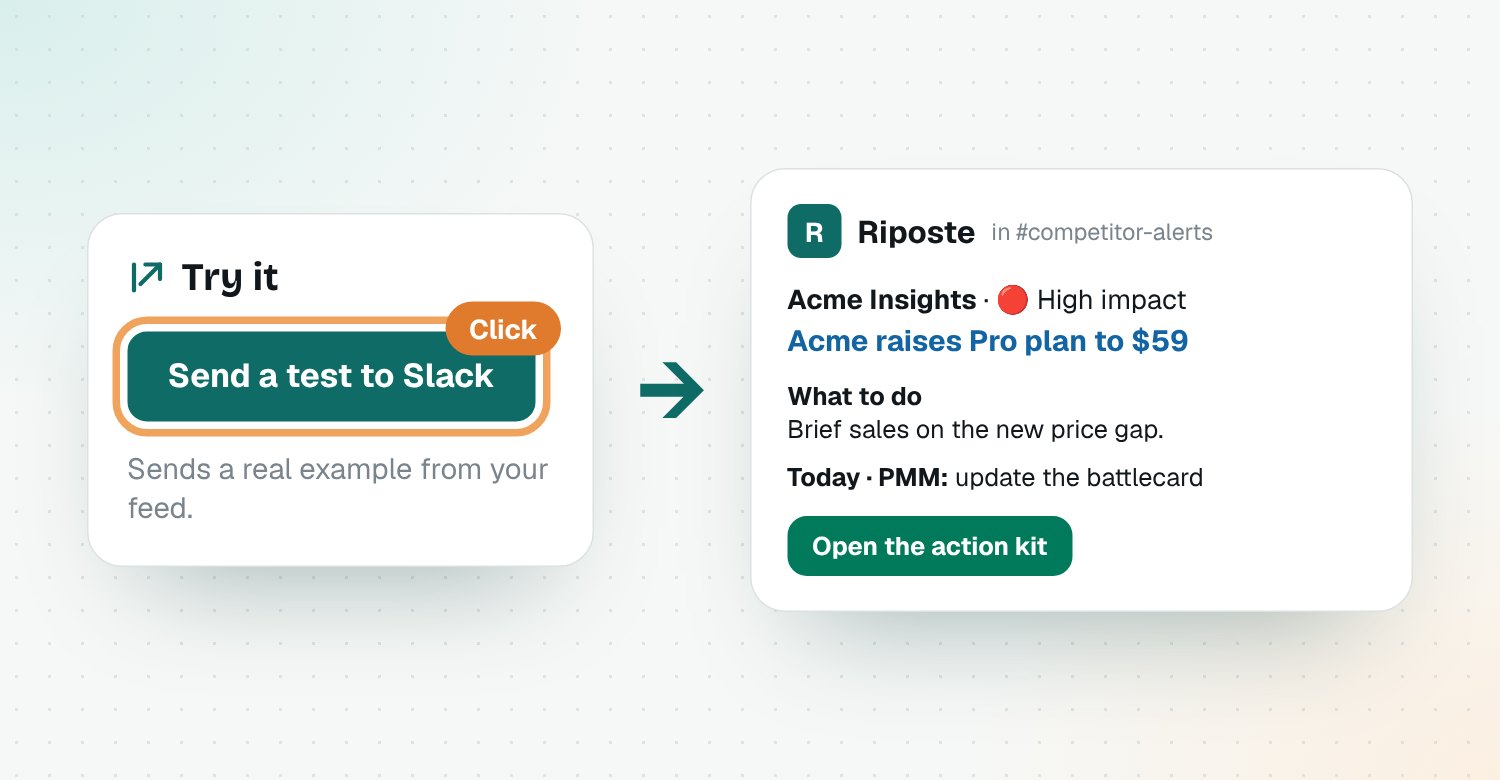
Nothing arrived? Check the link was saved in Settings, and look in the channel you picked in step 3.
Wrapping up
That's it. Riposte checks your competitors every morning, and your team sees what matters in Slack, with the next step.
Questions
Can I get competitor alerts in Slack?
Yes. Riposte posts high-impact competitor changes to a Slack channel of your choice, with what changed, why it matters, what to do and who does what. You connect it once in about five minutes.
Is the Slack integration free?
Yes. Slack alerts are part of Riposte, which is free during its beta, and they work on Slack's free plan.
Which competitor changes are sent to Slack?
High-impact changes, such as a price change, a launch that overlaps your product or a positioning shift aimed at your buyers, are posted the morning they're found. Every Monday, a summary of the week's changes is posted too, most important first.
What does a Riposte Slack alert include?
Each alert shows the competitor, the impact and type of change, what changed, why it matters to you and what to do. If an action kit was built, it also lists who does what, how soon and where to share it, with buttons to open it in Riposte.
Can I send alerts to more than one Slack channel?
Right now each Riposte account posts to one channel. Pick the channel your team already reads, such as #competitive-intel or #sales.
Is the Slack webhook link safe to share?
No. Anyone who has your webhook link can post messages in your channel, so only paste it into Riposte's Settings. If it leaks, open Incoming Webhooks in your Slack app, remove it and add a new one.
Why does Slack show a warning icon when I click a button?
Slack tells the app about every button click. If Interactivity isn't set up, Slack shows a warning icon. Turn Socket Mode off and add Riposte's Request URL under Interactivity & Shortcuts to fix it.
Do I need to be a Slack admin to connect Riposte?
Not always. Many workspaces let members install their own apps, but some admins require approval. If you can't install the app, ask your Slack admin to approve it.
Can I get competitor alerts by email instead of Slack?
Yes. Riposte can also send high-impact alerts and the Monday summary by email. Turn each one on or off in Settings, and use email, Slack or both.
How do I stop Riposte alerts in Slack?
Open Riposte's Settings, clear the Slack box and click Save. You can also remove the Riposte app from your Slack workspace.